IQ Option Register and Verify Account — Steps, Documents & Timing
Writen By

Online Trading Platform Researcher and Guide Writer
Researches broker platforms and trading account Systems.
Finishing account setup and identity checks is the usual barrier between creating credentials and placing real trades. New users often stall because of missing documents, mismatched personal data, or unsupported ID scans — problems that delay approval and block deposits. Verification requirements vary by country and by payment method, so checking accepted ID types and address proofs before you upload saves time. Preparing clear, high-resolution scans and ensuring the details on your profile match official documents reduces review time and prevents repeat requests.
Below you'll find a practical walkthrough of the registration flow, what you need to upload for identity and address checks, typical review times, and quick fixes for common errors. I'll also highlight common rejection reasons and how to submit corrected documents without starting a new application. This overview assumes you are opening a personal trading account and focuses on the verification steps required to enable deposits, live trading, and withdrawals once compliance checks are cleared.
Below you'll find a practical walkthrough of the registration flow, what you need to upload for identity and address checks, typical review times, and quick fixes for common errors. I'll also highlight common rejection reasons and how to submit corrected documents without starting a new application. This overview assumes you are opening a personal trading account and focuses on the verification steps required to enable deposits, live trading, and withdrawals once compliance checks are cleared.
How to Register on IQ Option
How to Register with an Email
1. You can sign up for an account on the platform by clicking the “Sign Up” button in the upper right corner.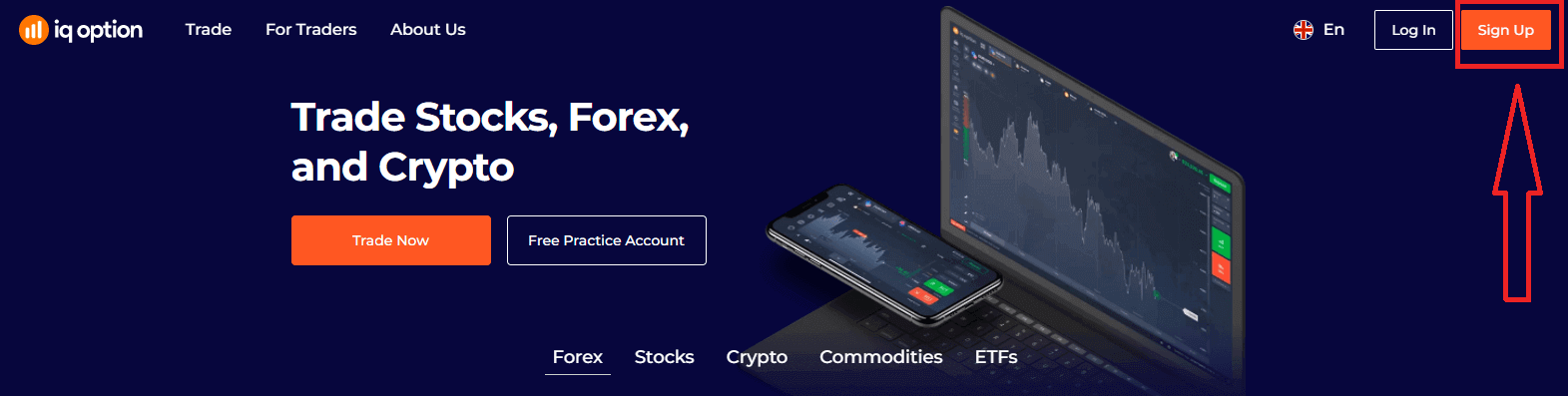
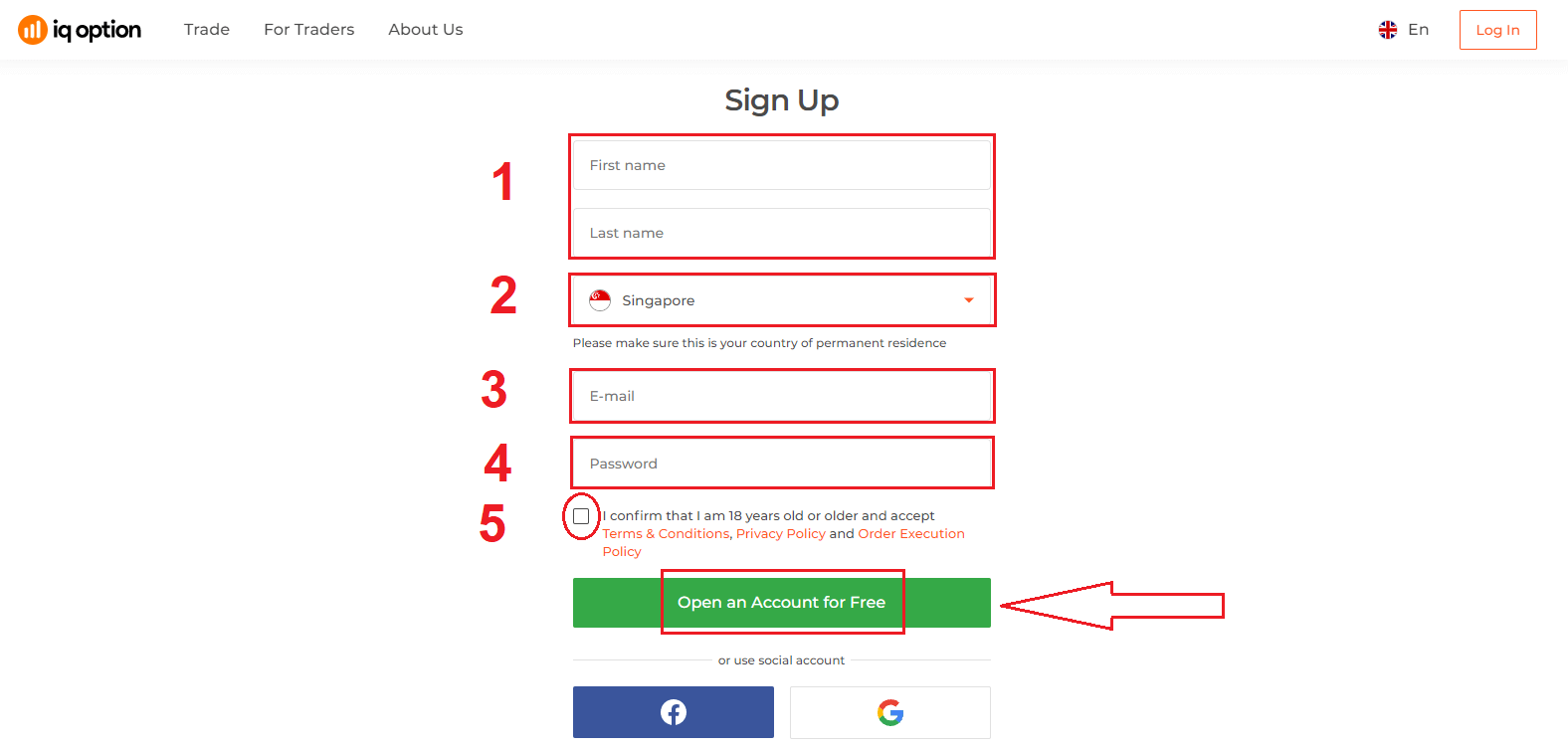
2. To sign-up you need to fill in all the necessary information and click "Open an Account for Free"
- Enter your First name and Last name
- Choose your country of permanent residence
- Enter a valid email address.
- Create a strong password.
- Read "Terms Conditions" and check it
Congratulation! You have registered successfully. Now if you want to use Demo Account, click "Start Trading on practice account".
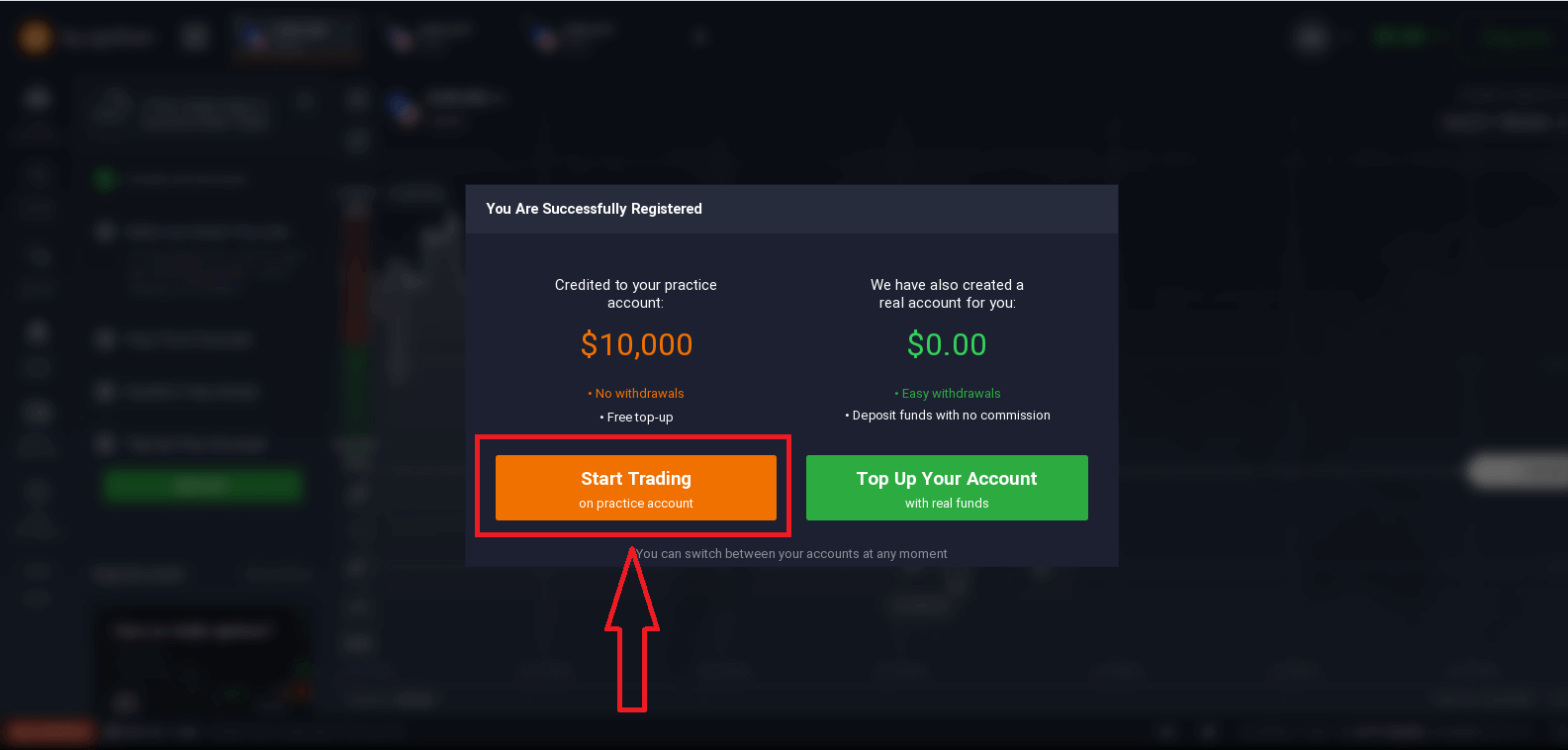
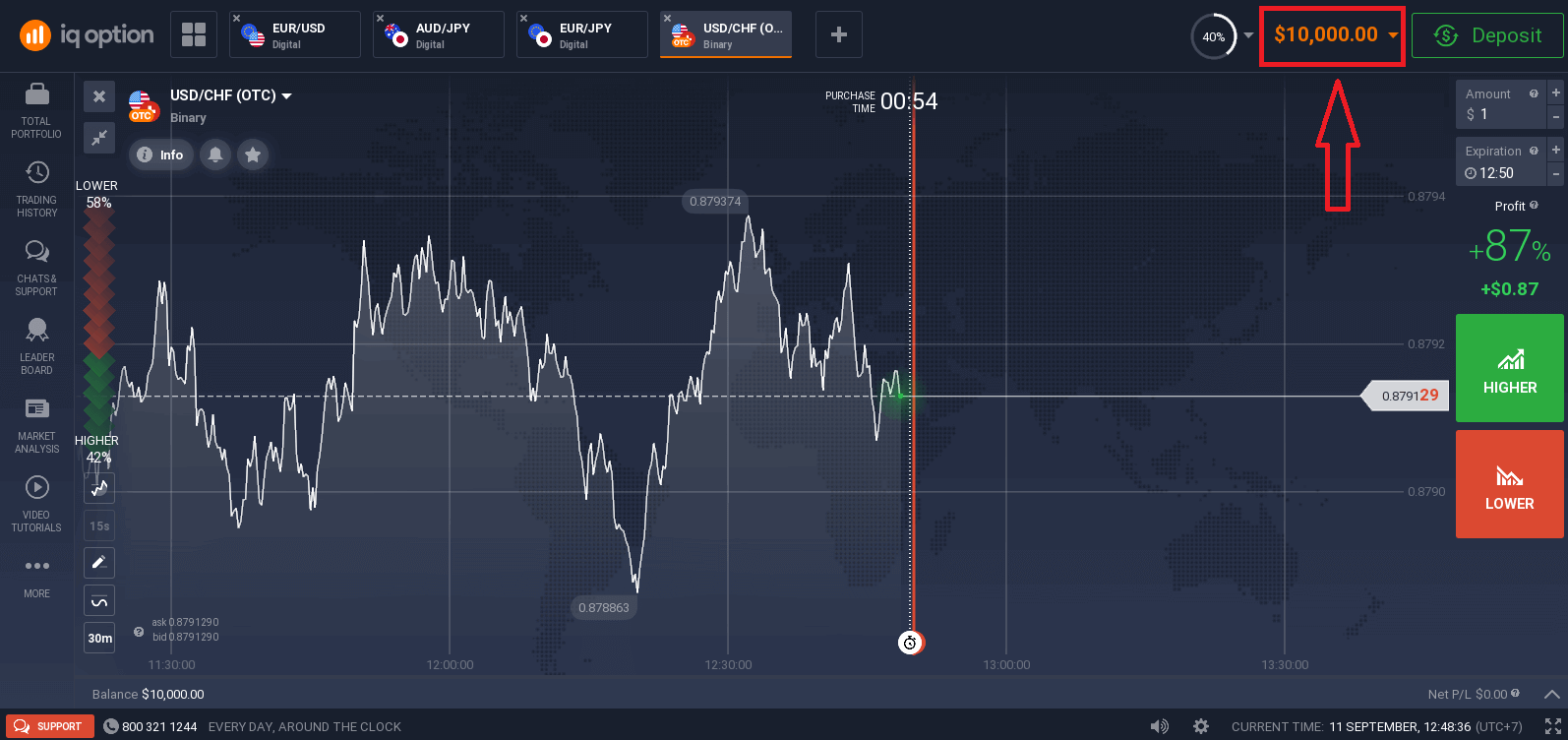
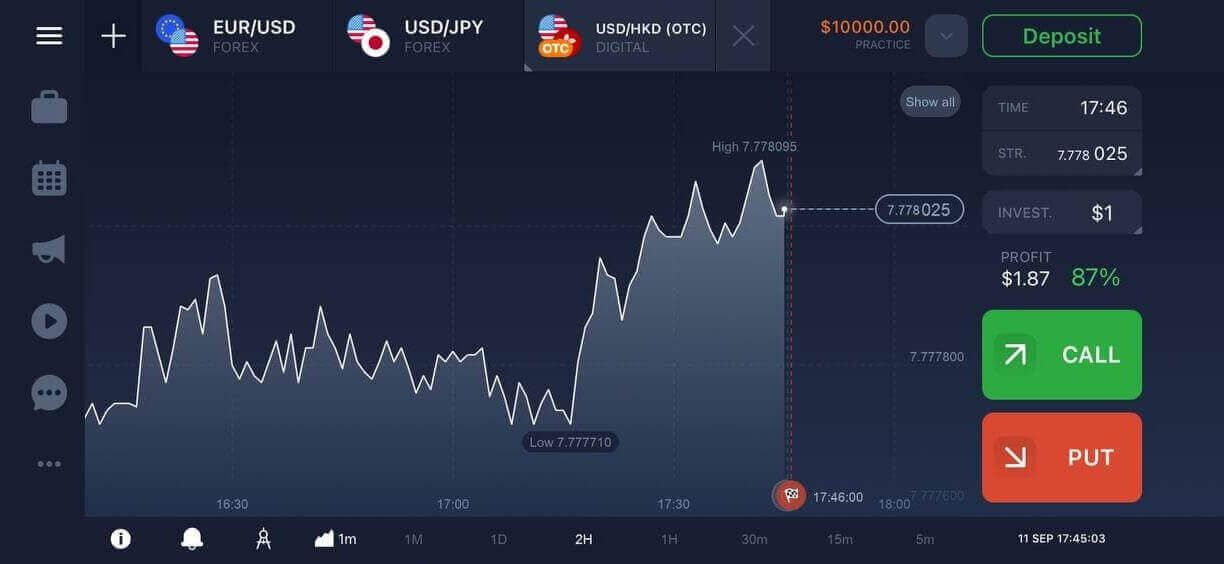
Now you are able to start trading. You have $10,000 in Demo Account. A demo account is a tool for you to get familiar with the platform, practice your trading skills on different assets and try out new mechanics on a real-time chart without risks.
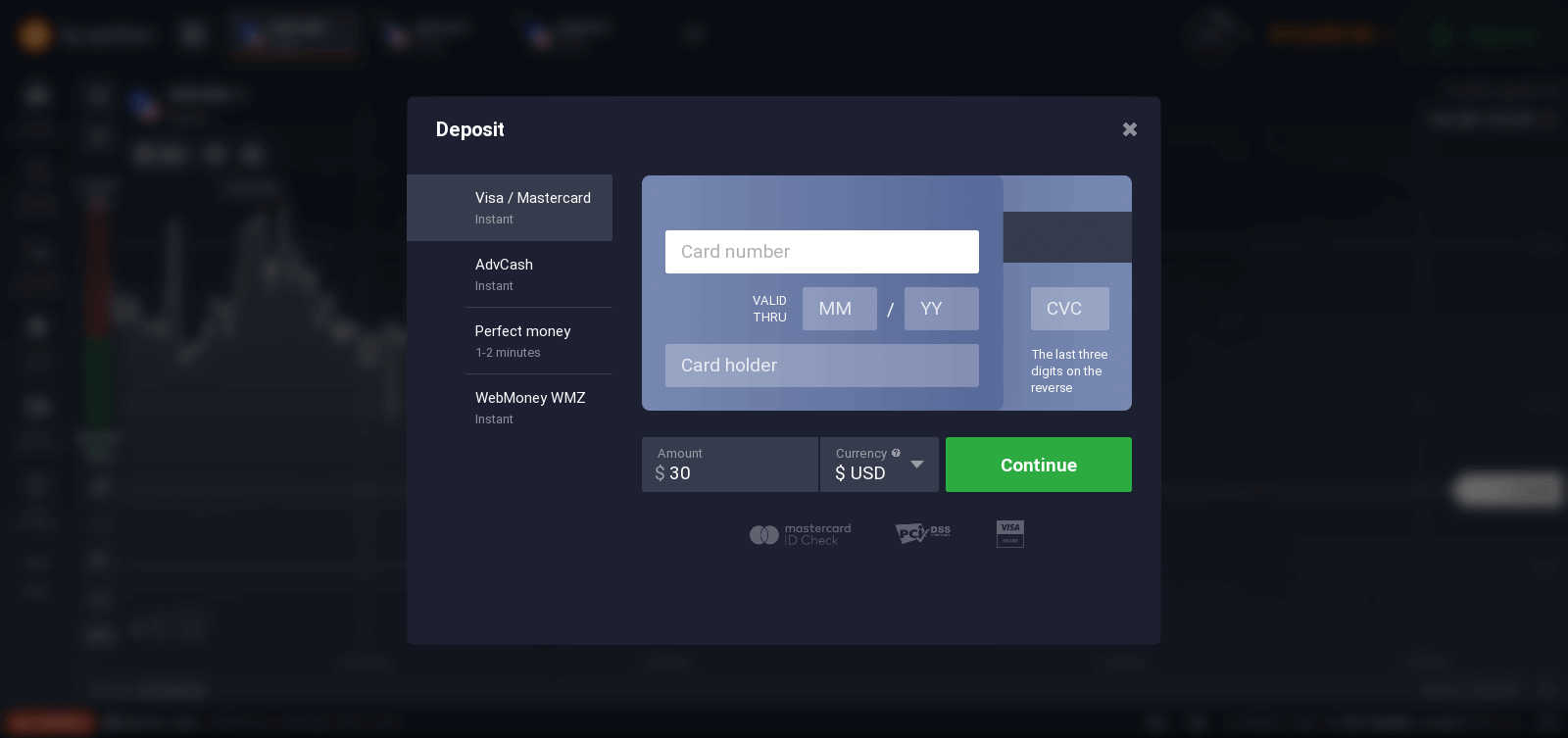
You can also trade on a real account after depositing by clicking "Top Up Your Account with real funds".
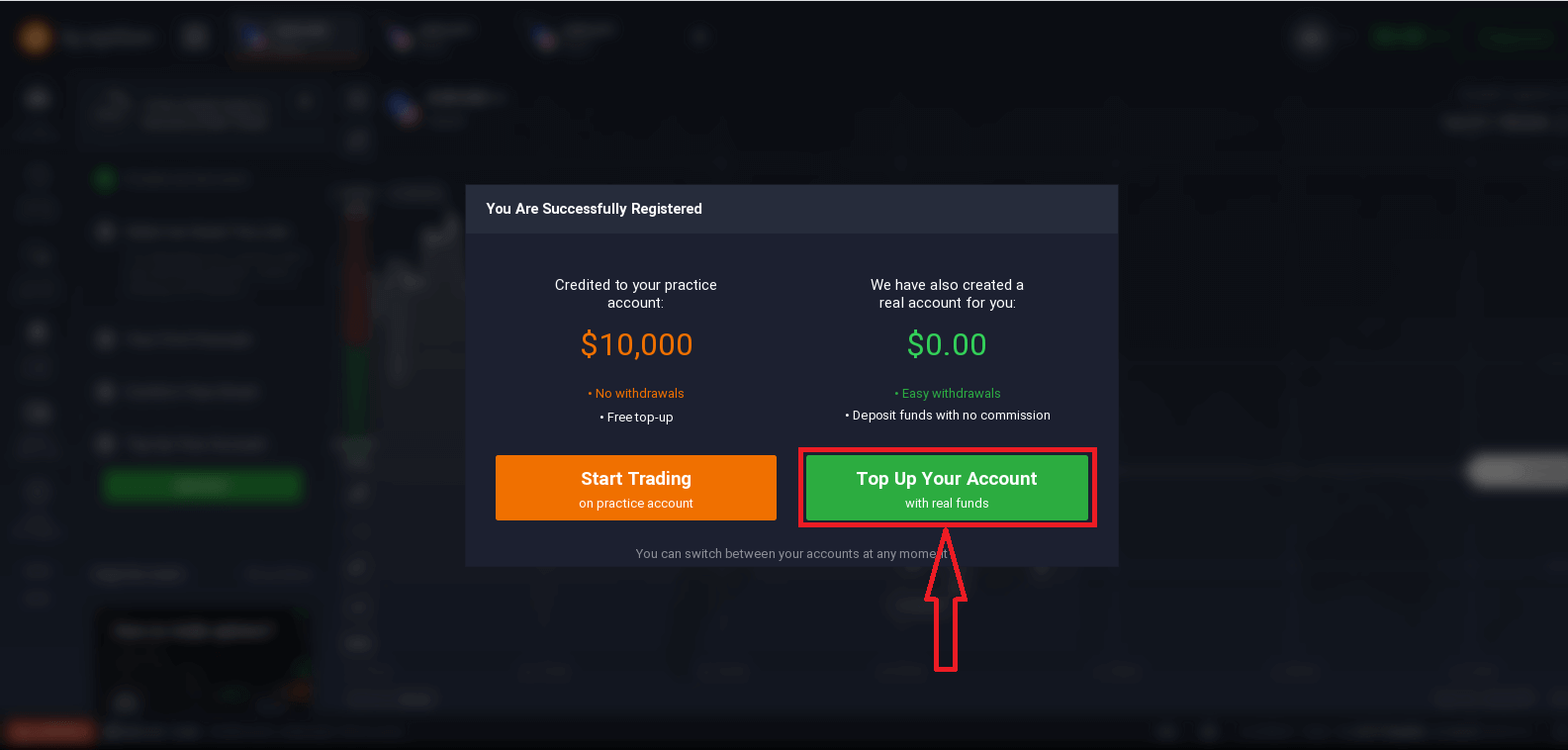
To start Live trading you have to make an investment in your account (The minimum deposit is 10 USD/GBP/EUR).
Refer to this article to know more about Deposit: How to make a Deposit in IQ Option
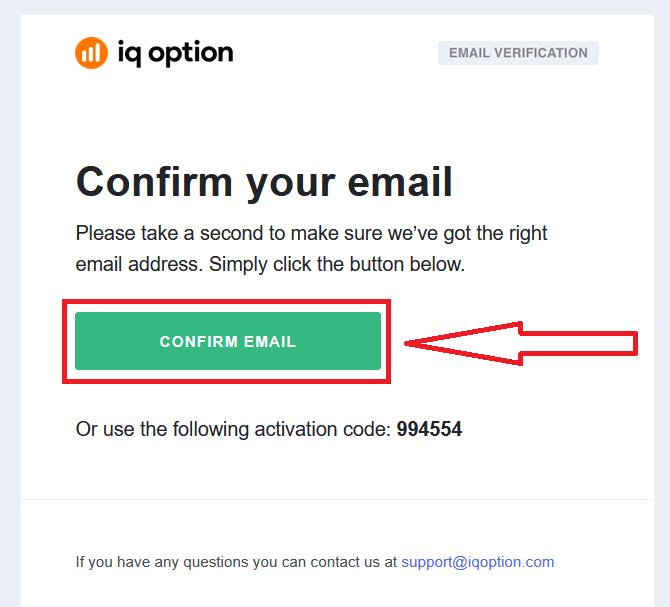
Finally, you access your email, IQ Option will send you a confirmation mail. Click the link in that mail to activate your account. So, you will finish registering and activating your account.
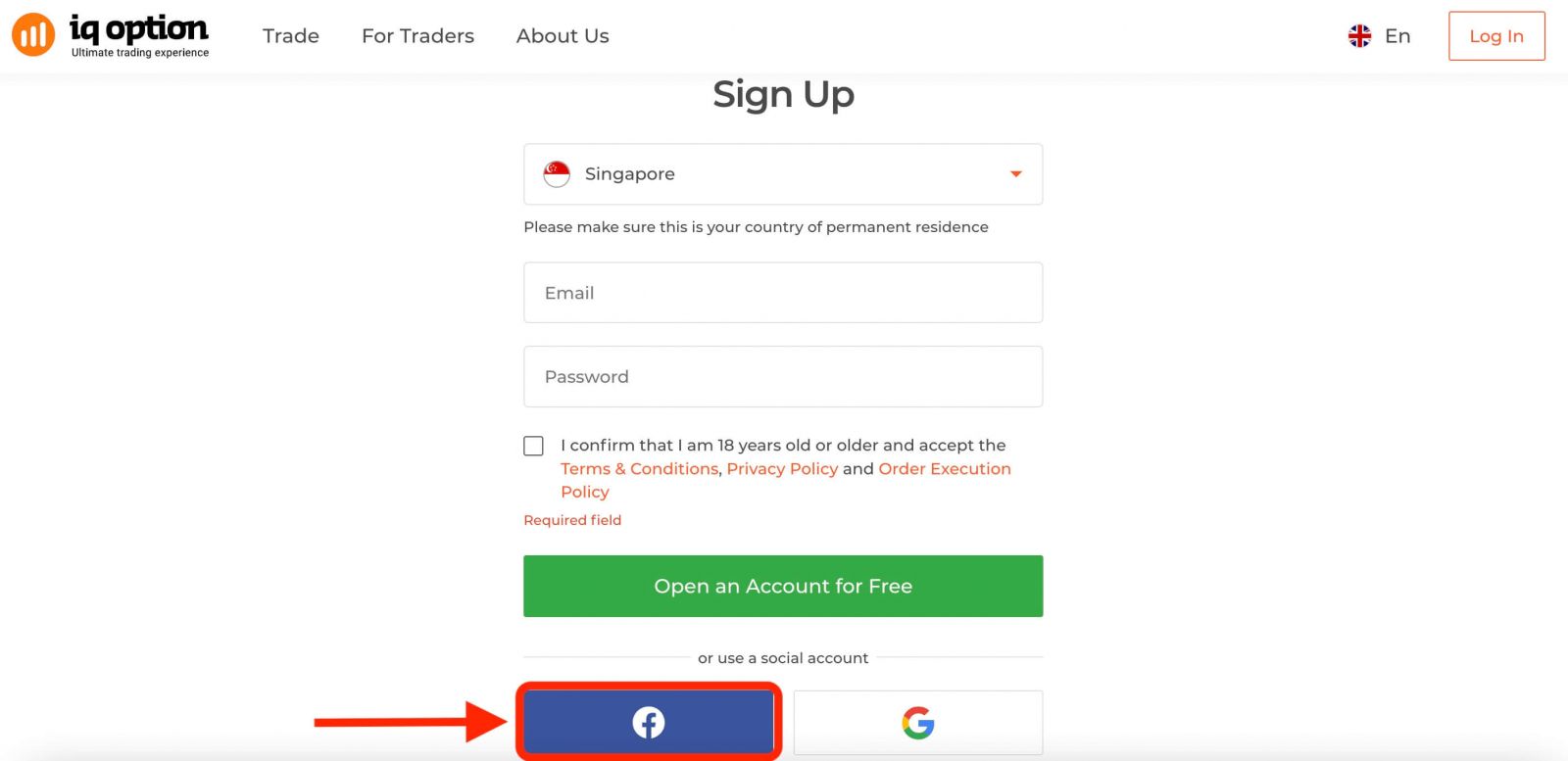
How to Register with a Facebook account
Also, you have an option to open your account through the web by Facebook account and you can do that in just a few simple steps:1. Click on the Facebook button
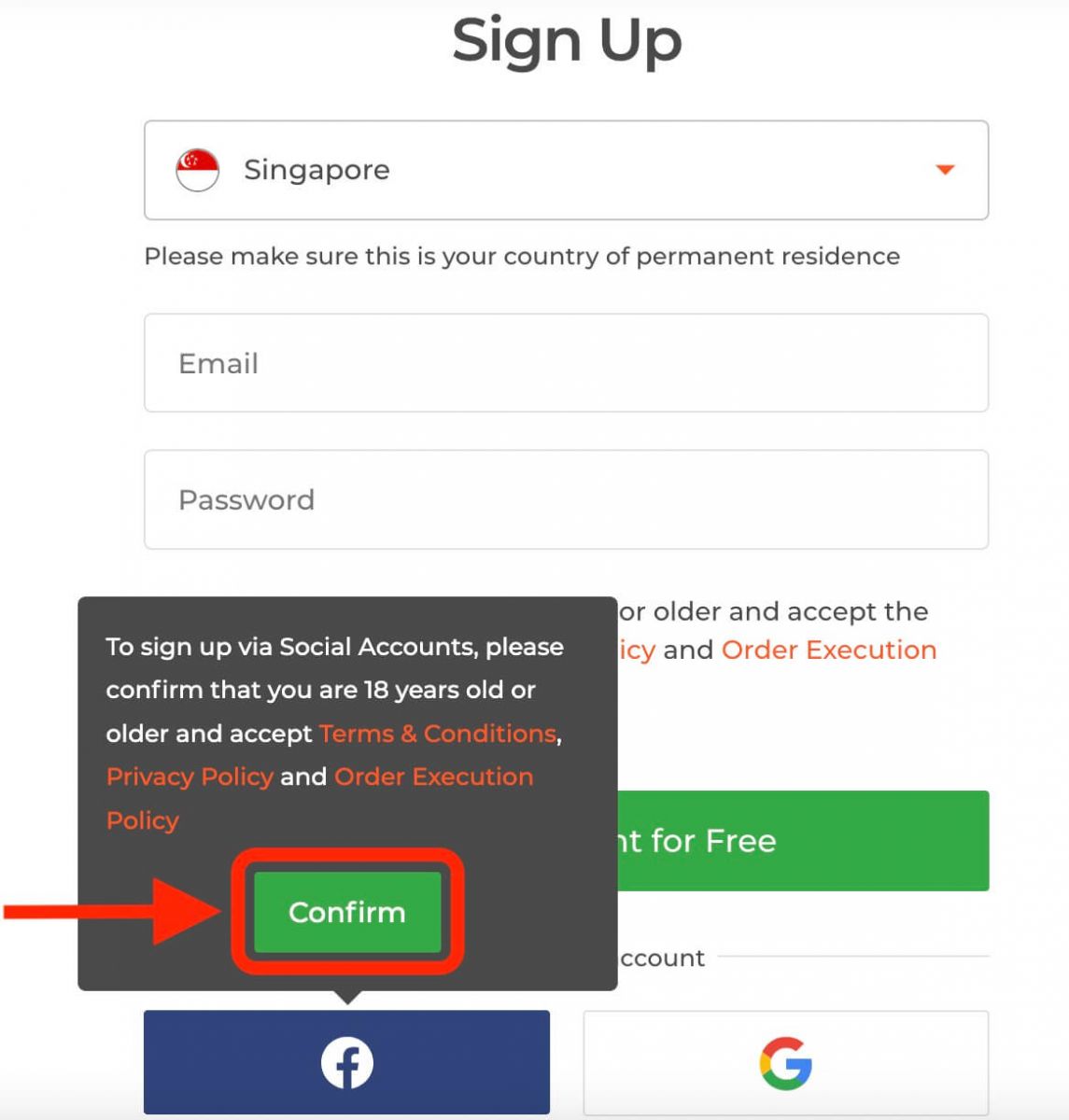
Then It will ask you that you are 18 years old or older and accept Terms Conditions, Privacy Policy and Order Execution Policy, click "Confirm".
2. Facebook login window will be opened, where you will need to enter your email address that you used to register in Facebook
3. Enter the password from your Facebook account
4. Click on “Log In”
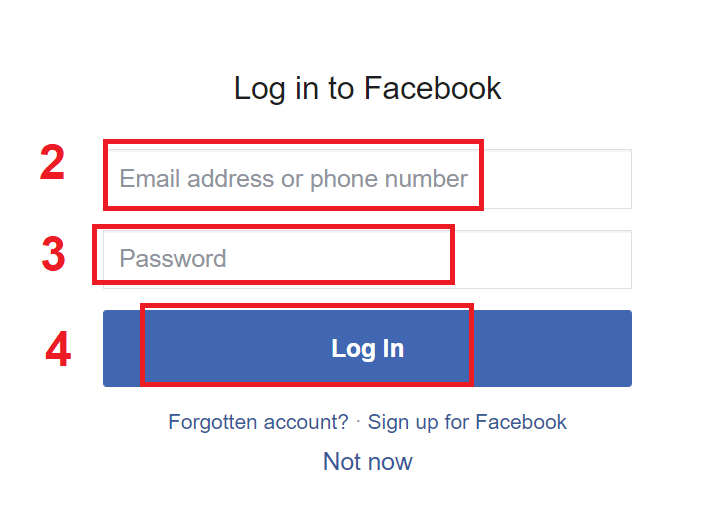
Once you’ve clicked on the “Log in” button, IQ Option is requesting access to: Your name and profile picture and email address. Click Continue...
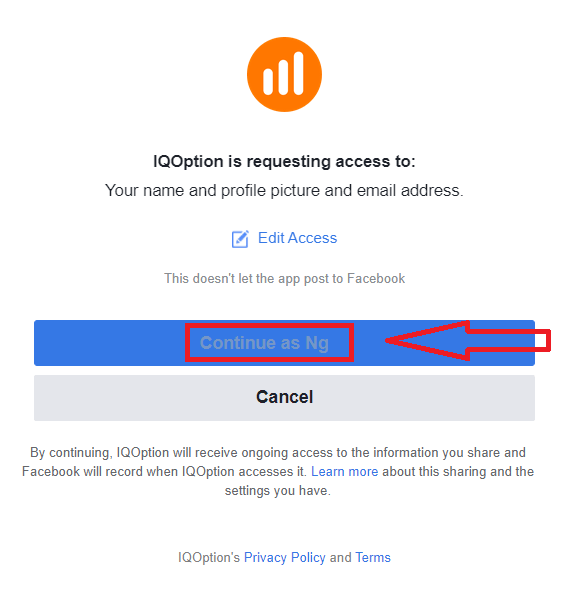
After that, You will be automatically redirected to the IQ Option platform.
How to Register with a Google account
1. To sign up with a Google account, click on the corresponding button in the registration form.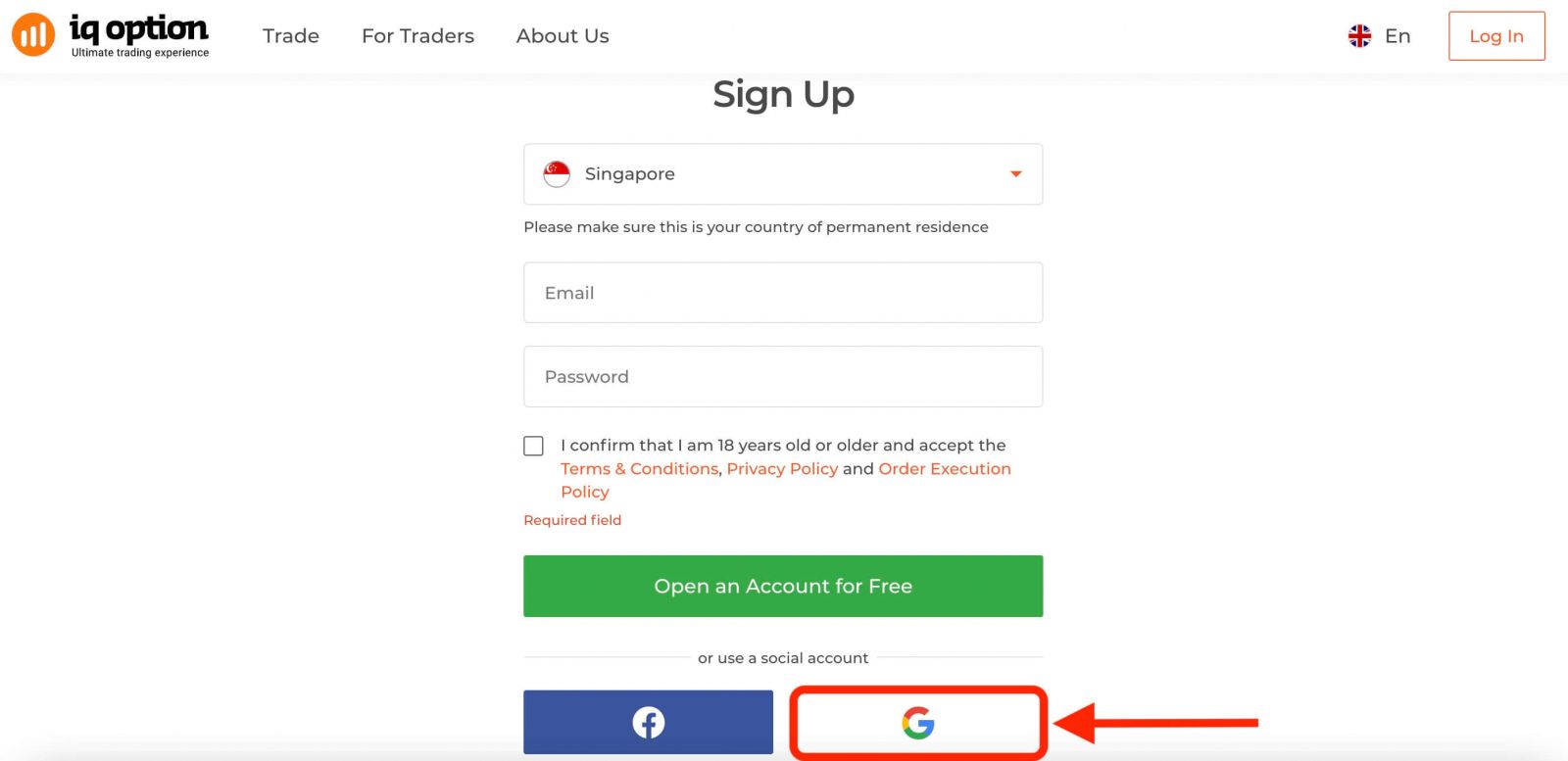
Then It will ask you that you are 18 years old or older and accept Terms Conditions, Privacy Policy and Order Execution Policy, click "Confirm"
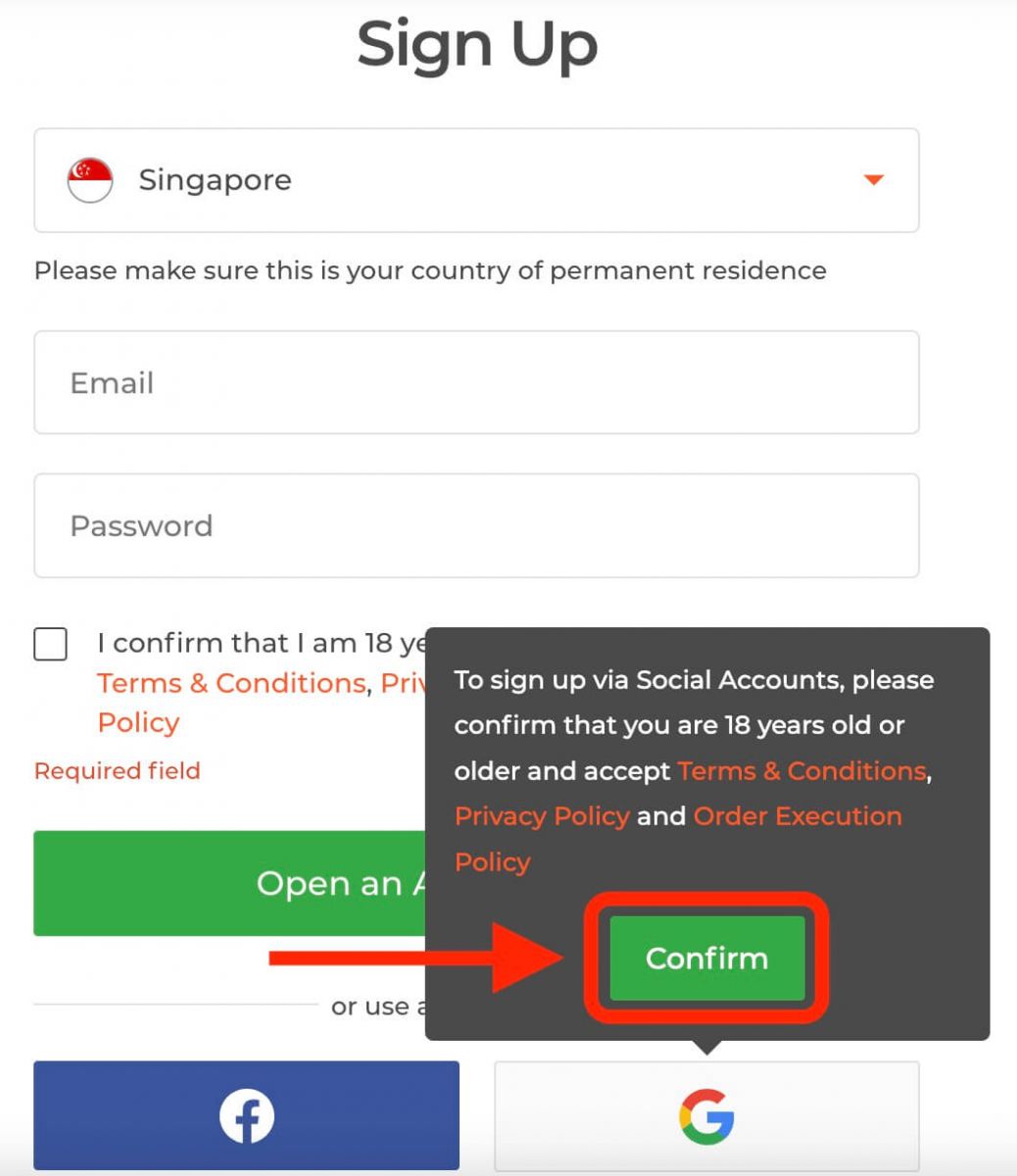
2. In the newly opened window enter your phone number or email and click "Next".
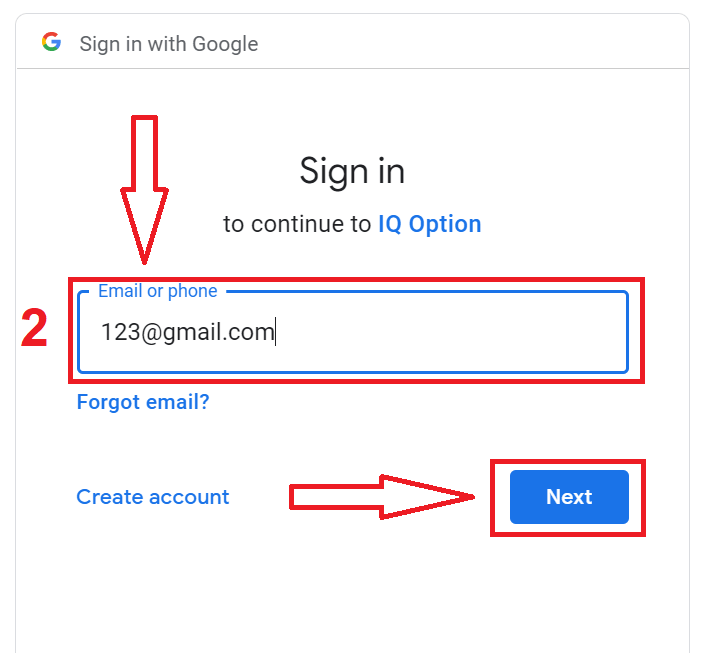
3. Then enter the password for your Google account and click “Next”.
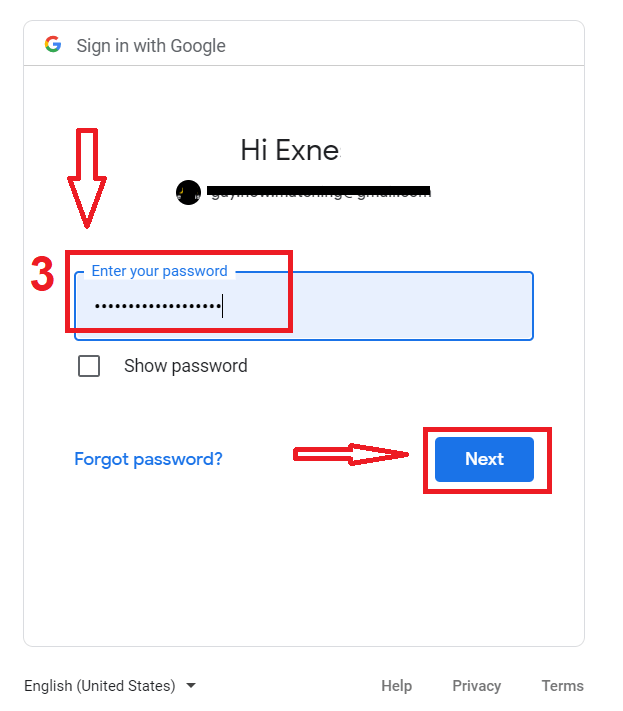
After that, follow the instructions sent from the service to your email address.
Register on IQ Option iOS App
If you have an iOS mobile device you will need to download the official IQ Option mobile app from App Store or here. Simply search for “IQ Option - FX Broker” app and download it on your iPhone or iPad.The mobile version of the trading platform is exactly the same as web version of it. Consequently, there won’t be any problems with trading and transferring funds. Moreover, IQ Option trading app for iOS is considered to be the best app for online trading. Thus, it has a high rating in the store.
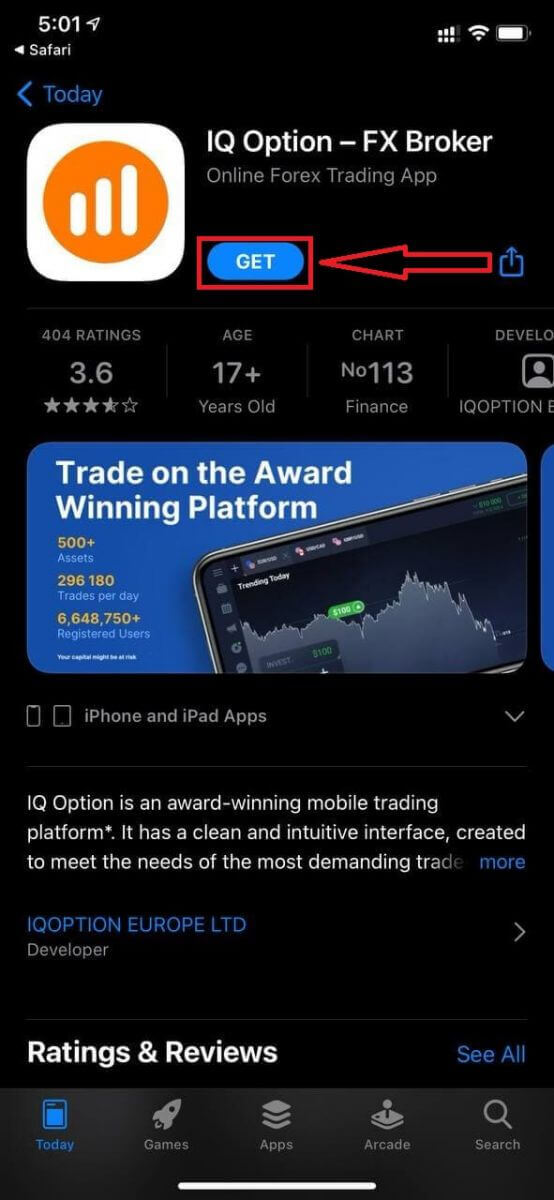
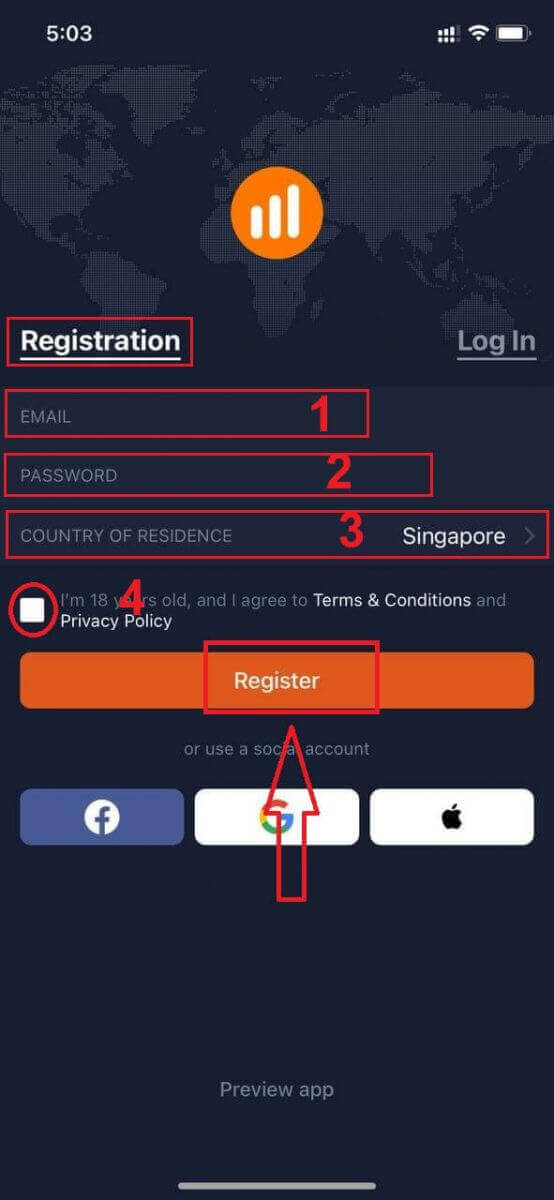
Registration for the iOS mobile platform is also available for you.
- Enter a valid email address.
- Create a strong password.
- Select your country of permanent residence
- Check "Terms Conditions" and click "Register"
Congratulation! You have registered successfully, click "Trade on Pratice" for Trading with Demo Account.
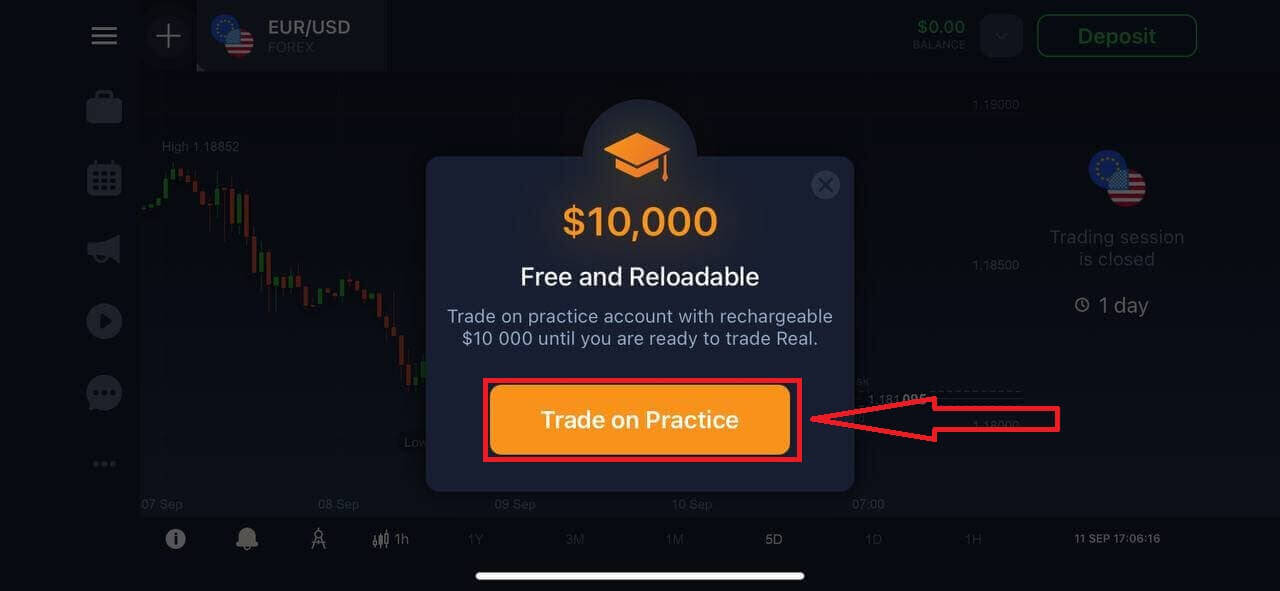
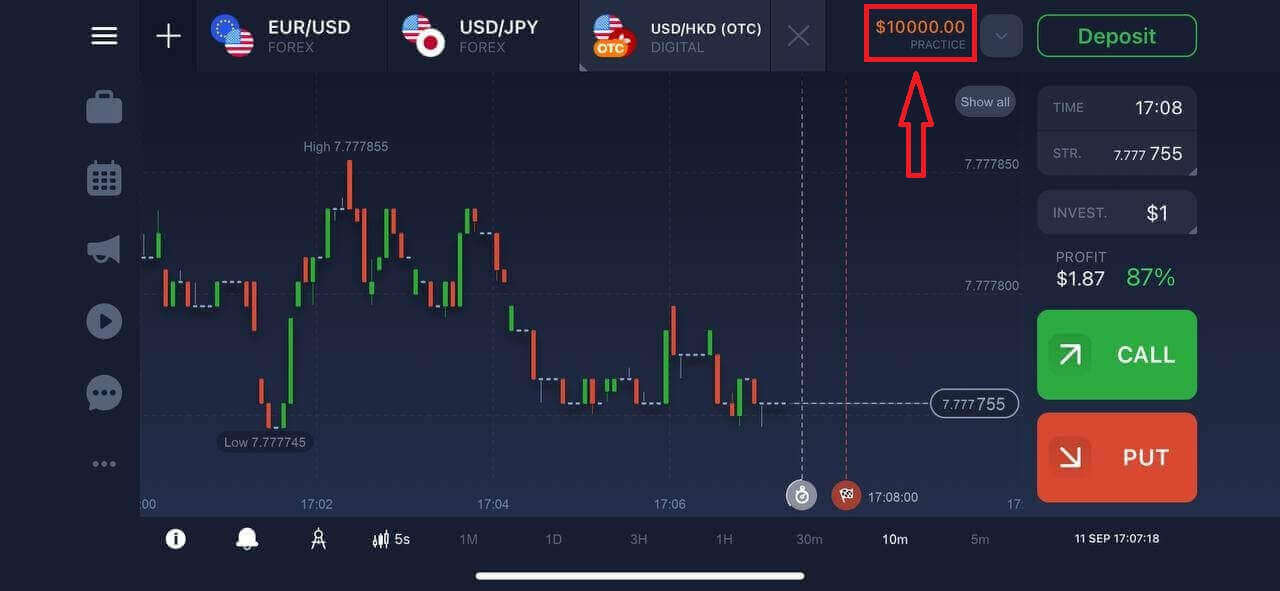
You have $10,000 in Demo Account.
Register on IQ Option Android App
If you have an Android mobile device you will need to download the official IQ Option mobile app from Google Play or here. Simply search for “IQ Option - Online Investing Platform” app and download it on your device.The mobile version of the trading platform is exactly the same as web version of it. Consequently, there won’t be any problems with trading and transferring funds. Moreover, IQ Option trading app for Android is considered to be the best app for online trading. Thus, it has a high rating in the store.
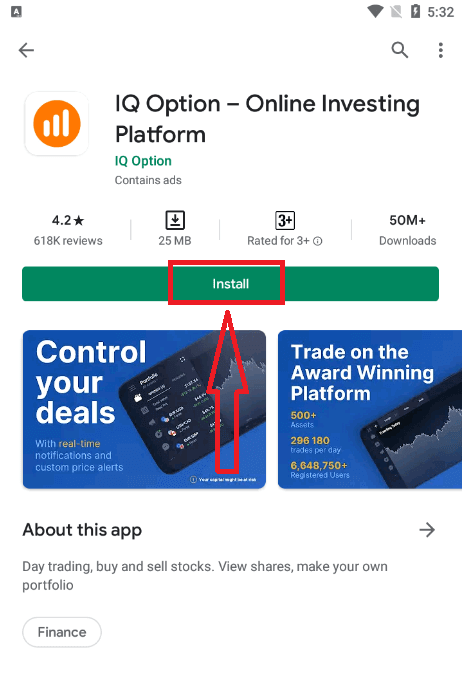
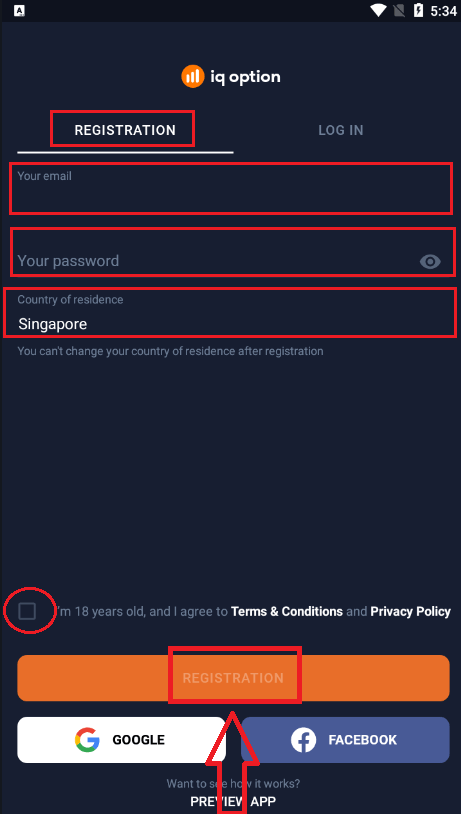
Registration for the Android mobile platform is also available for you.
- Enter a valid email address.
- Create a strong password.
- Select your country of permanent residence
- Check "Terms Conditions" and click "Registration"
Congratulation! You have registered successfully, click "Trade on Practice" for Trading with Demo Account.
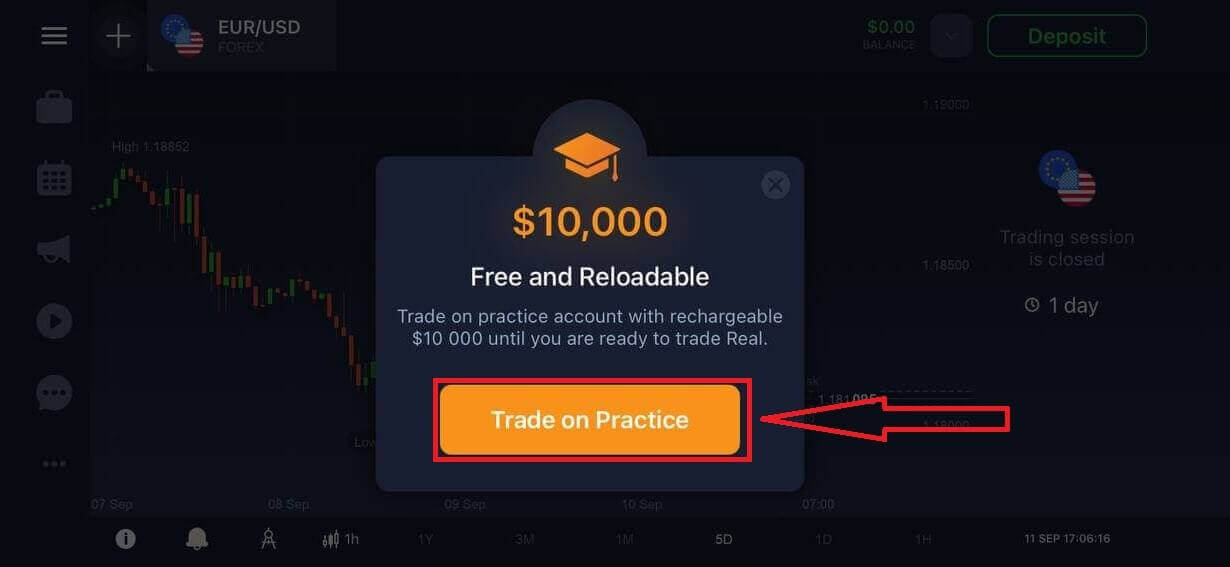
You have $10,000 in Demo Account.
Register IQ Option account on Mobile Web Version
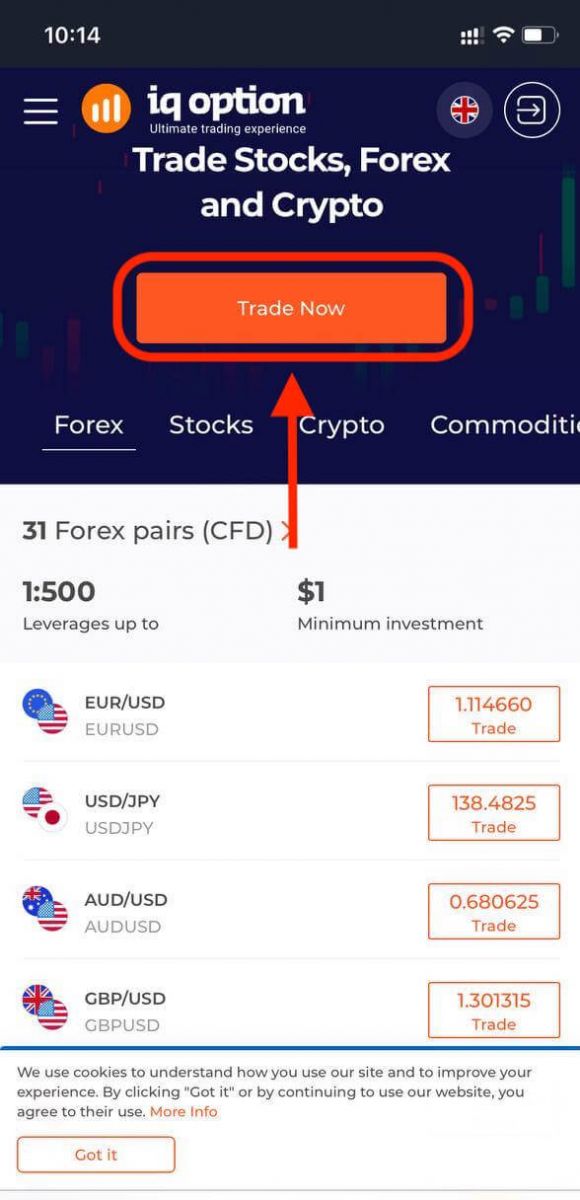
If you want to trade on the mobile web version of IQ Option trading platform, you can easily do it. Initially, open up your browser on your mobile device and visit the website of the broker.Tap the "Trade Now" button in the center.
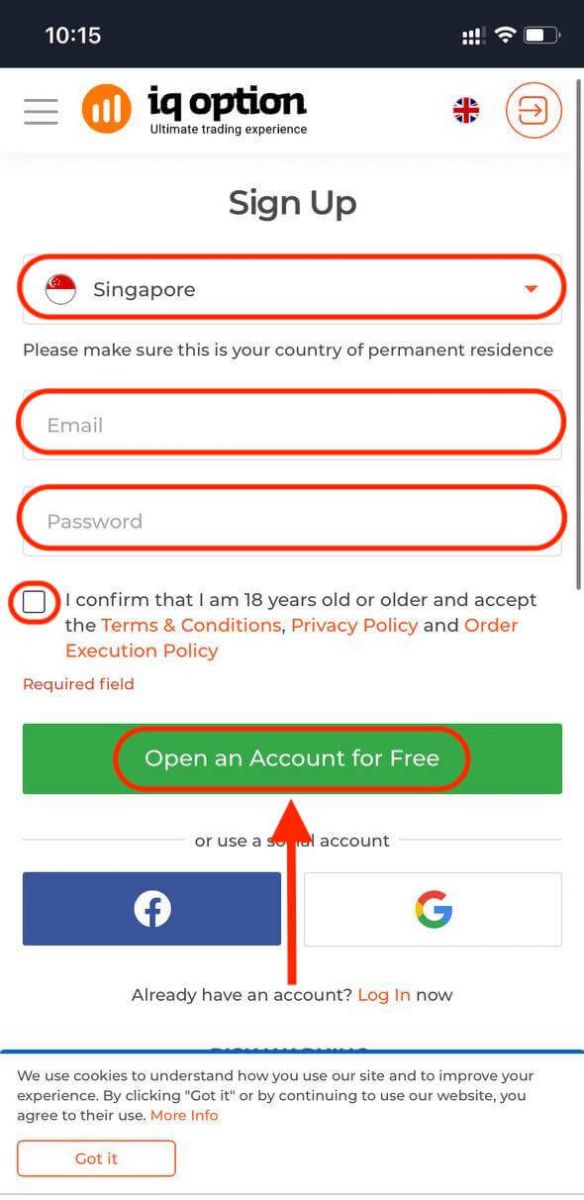
At this step you still enter the data: email, password, check "Terms Conditions" and tap "Open an Account for Free".
Here you are! Now you are able to trade from the mobile web version of the platform. The mobile web version of the trading platform is exactly the same as a regular web version of it. Consequently, there won’t be any problems with trading and transferring funds.
You have $10,000 in Demo Account.
Frequently Asked Questions (FAQ)
How much money can I make on the practice account?
You can’t take any profit from transactions you complete on the practice account. You get virtual funds and make virtual transactions. It is intended for training purposes only. To trade using real money, you need to deposit funds to a real account.
How do I switch between the practice account and the real account?
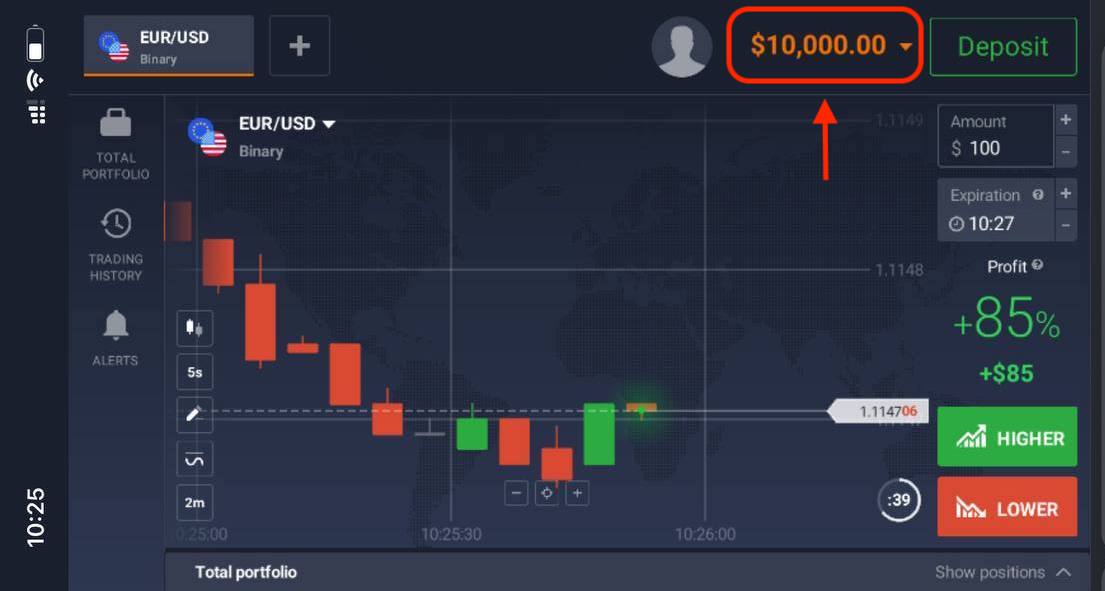
To switch between accounts, click your balance in the upper-right corner. Make sure you are in the traderoom. The panel that opens shows all your accounts: your real account and your practice account. Click an account to make it active so you can use it for trading.
How do I top up the practice account?
You can always top up your practice account for free if the balance falls below $10,000. First, you must select this account. Then click the green Deposit button with two arrows in the upper-right corner. A window opens where you can choose which account to top up: the practice account or the real one.
Does IQ Option have apps for PC, iOS, or Android?
Yes! And on computers, the platform responds faster in the application for Windows and Mac OS. Why is it faster to trade in the application? The website is slower to update movements on the chart because the browser doesnt use available WebGL capabilities for maximizing the computer’s video card resources. The application doesn’t have this limitation, so it updates the chart almost instantaneously. IQ Option also has apps for iOS and Android. You can find and download the applications on IQ Option download page.If a version of the app is not available for your device, you can still trade using the IQ Option website.
How can I secure my account?
To secure your account, use 2-step authentication. Each time you log in to the platform, the system will require you to enter a special code sent to your phone number. You can activate the option in the Settings.How to Verify Account on IQ Option
How do I verify my account?
To verify your account, please click the red line ‘Verify email address’ as shown here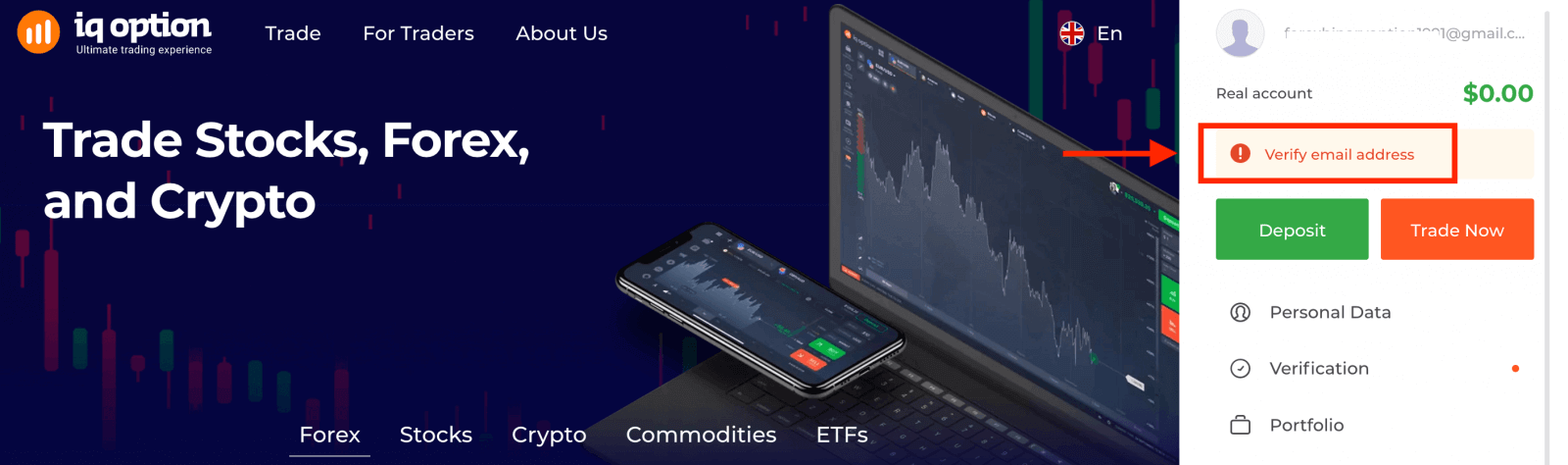
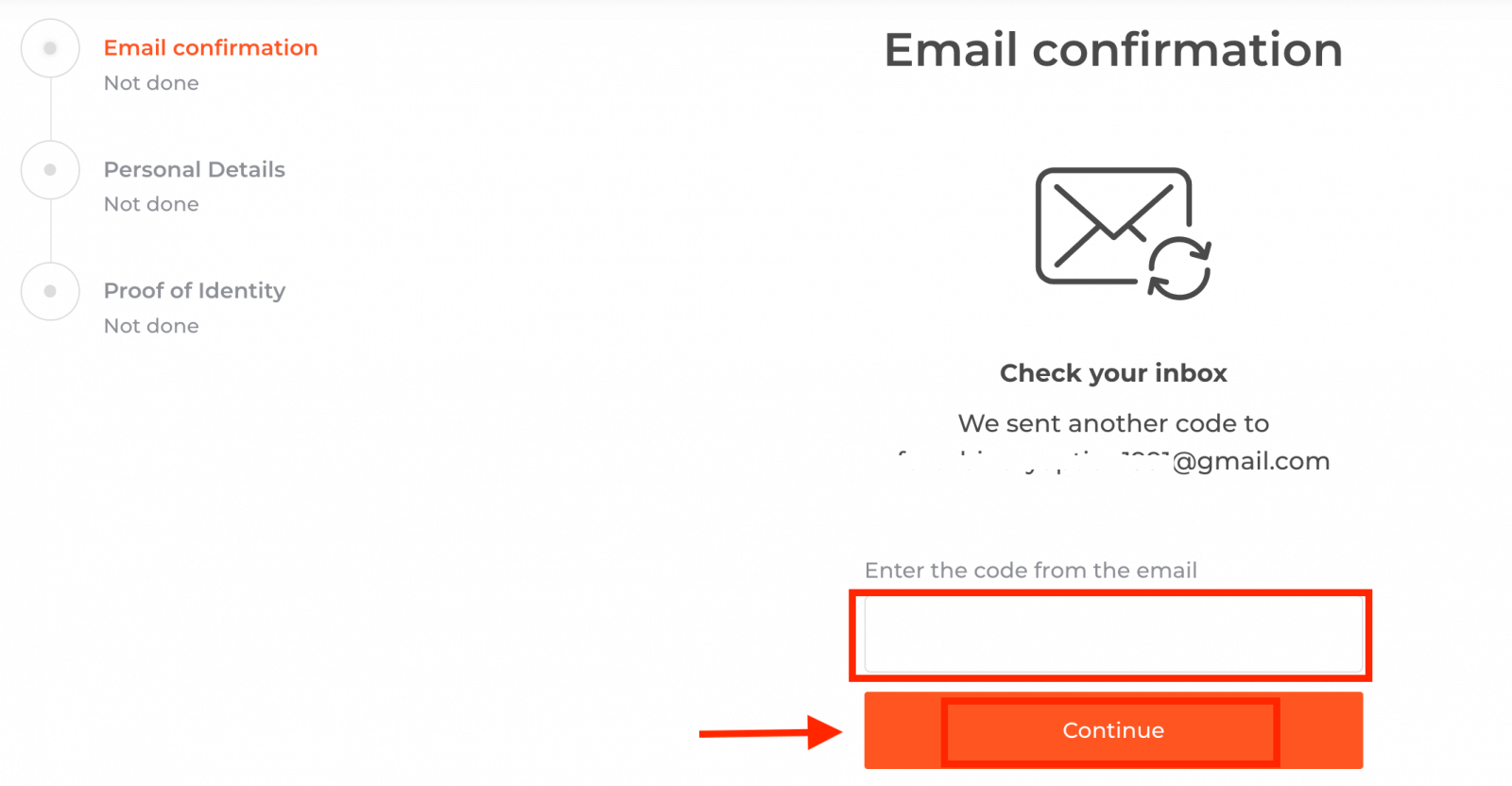
Step 1: confirm your e-mail. In the process of signing up, you’ll receive an email with a confirmation code. Enter this code in the relevant field
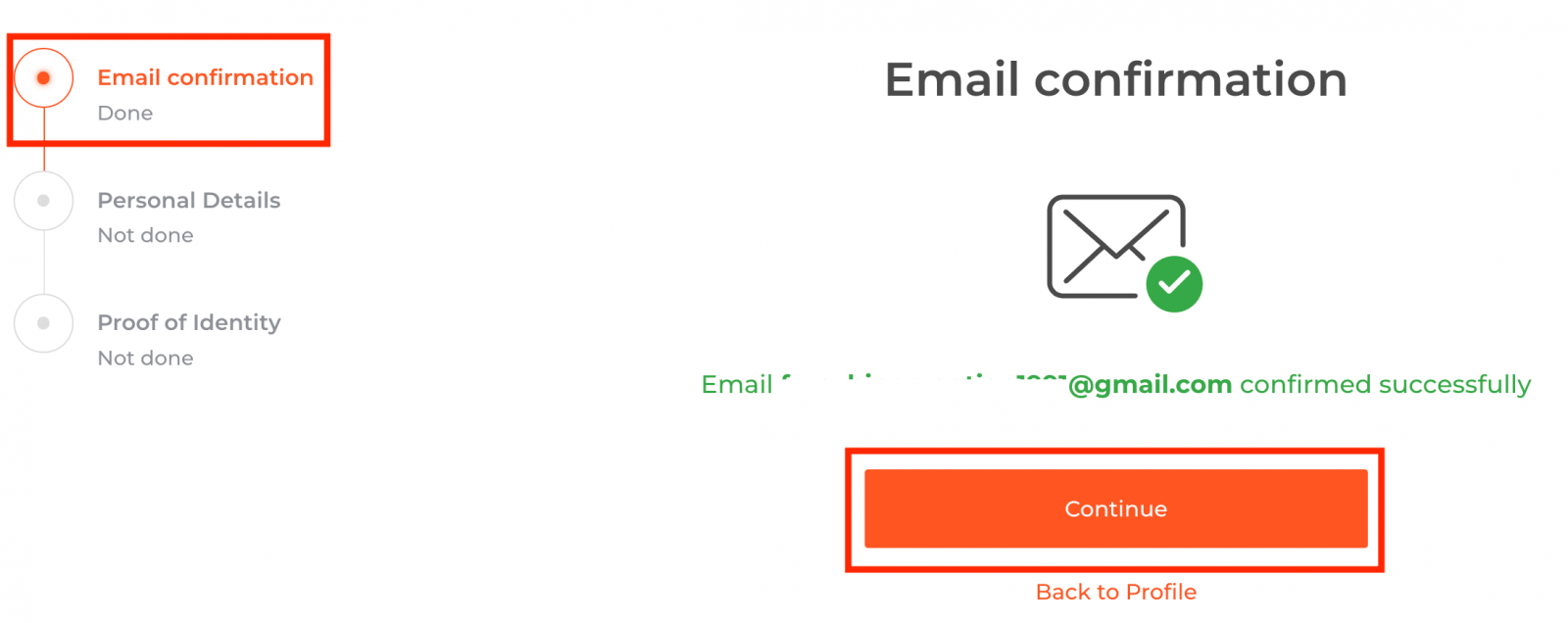
Step 2 is essential for completing the verification procedure
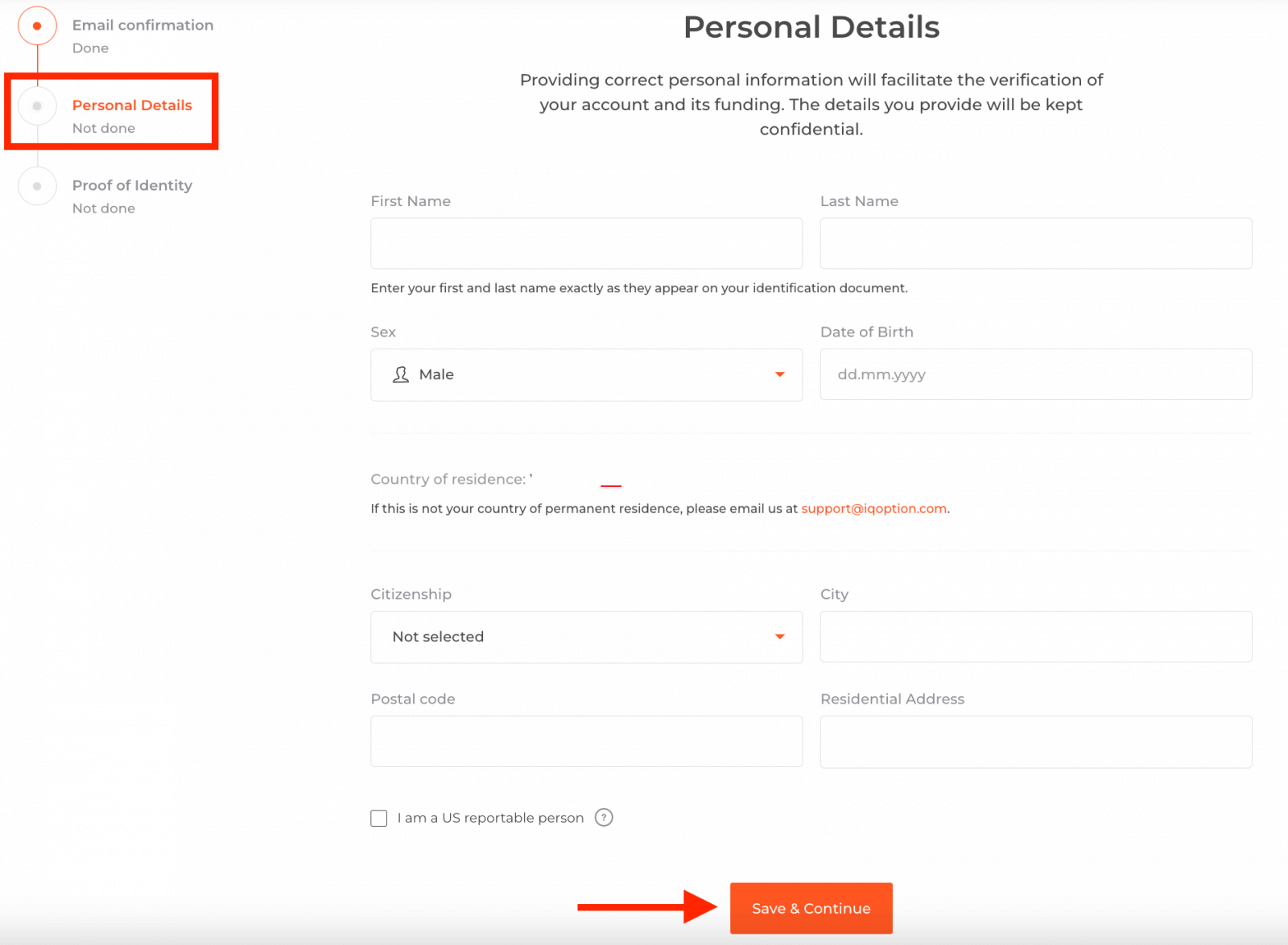
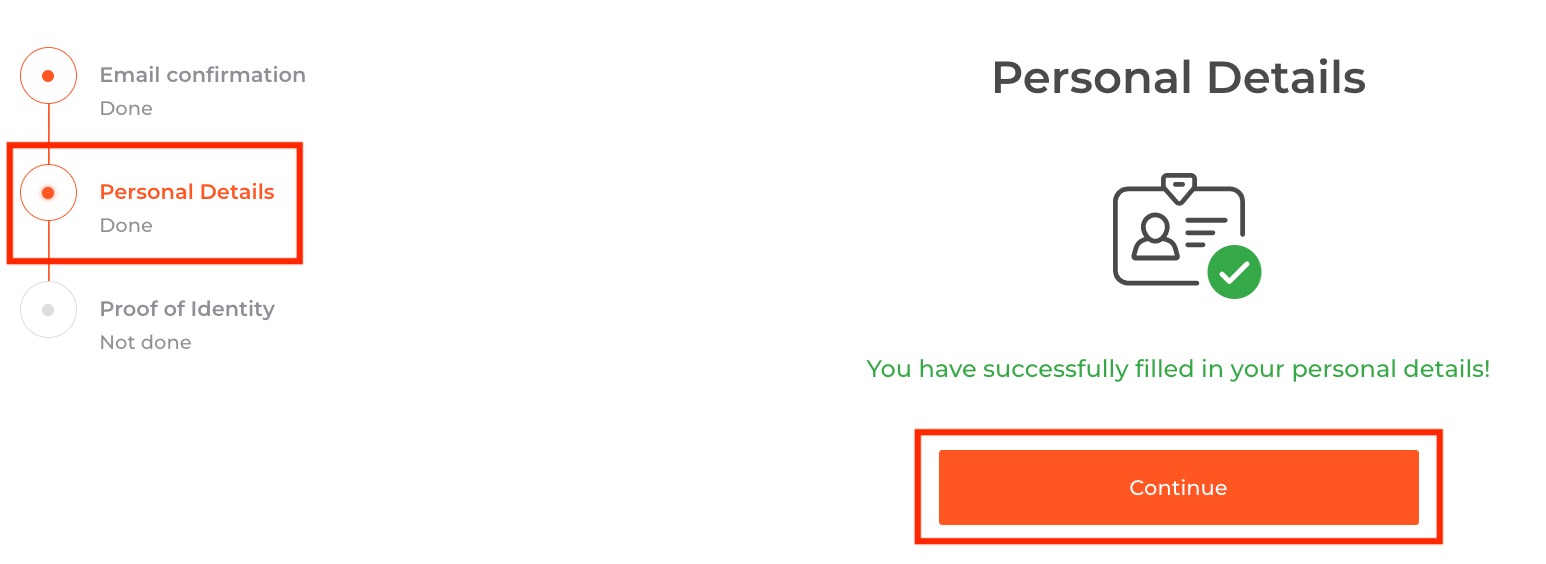
Step 3 requires you to upload your documents for verification:
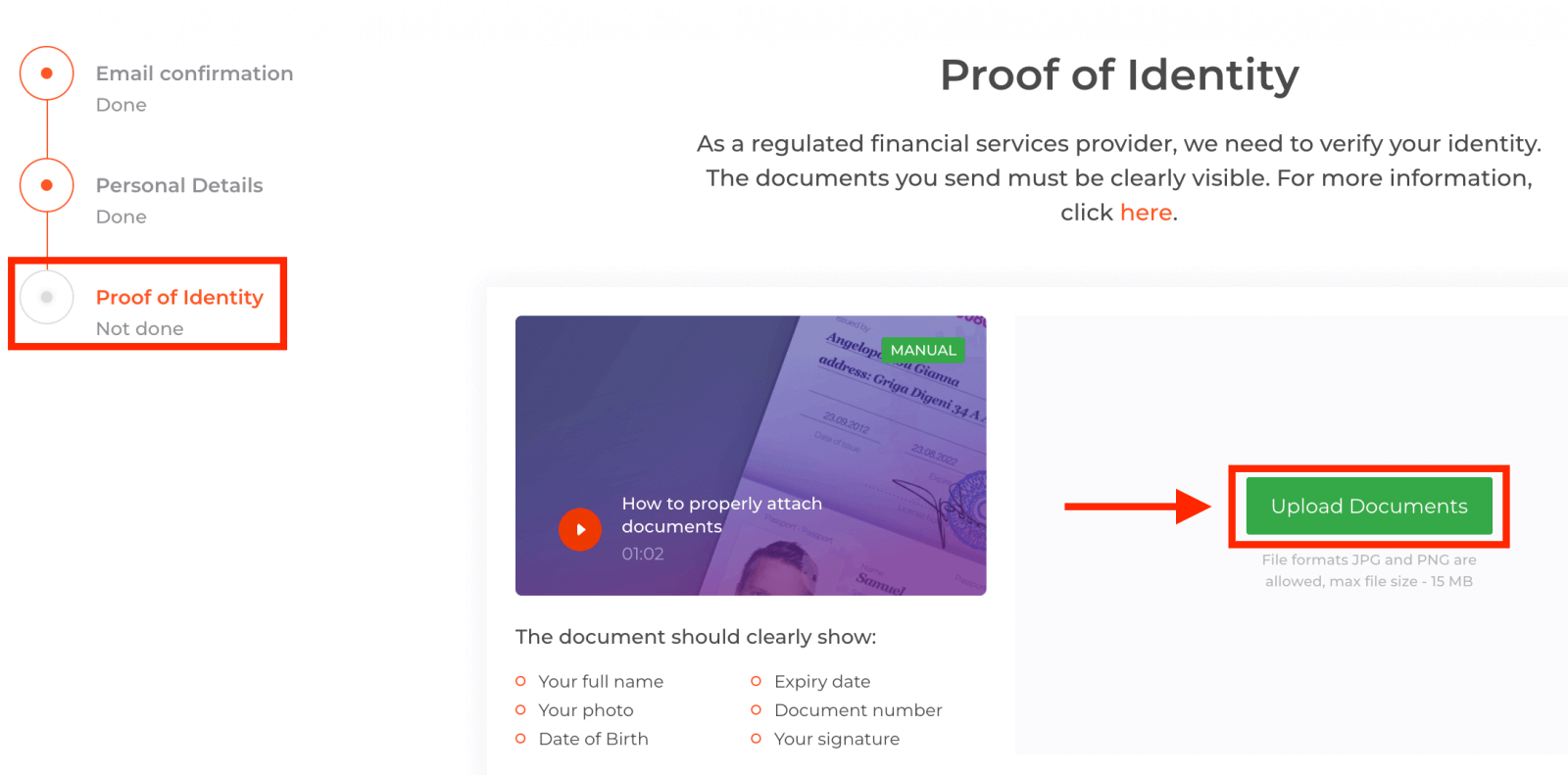
To pass the verification process, you will be kindly asked to upload your documents on the platform using the links given below:
1) A photo of your ID. Provide a scan or a photo of one of the following documents:
- Passport
- ID Card both side
- Driver’s licence both side
- Residence permit
The document should clearly show:
- Your full name
- Your photo
- Date of Birth
- Expiry date
- Document number
- Your signature
2) If you used a bank card for depositing money, please upload a copy of both sides of your card (or cards if you used more than one to deposit). Please remember that you should hide your CVV number and keep visible the first 6 and the last 4 digits of your card number only. Please make sure that your card is signed.
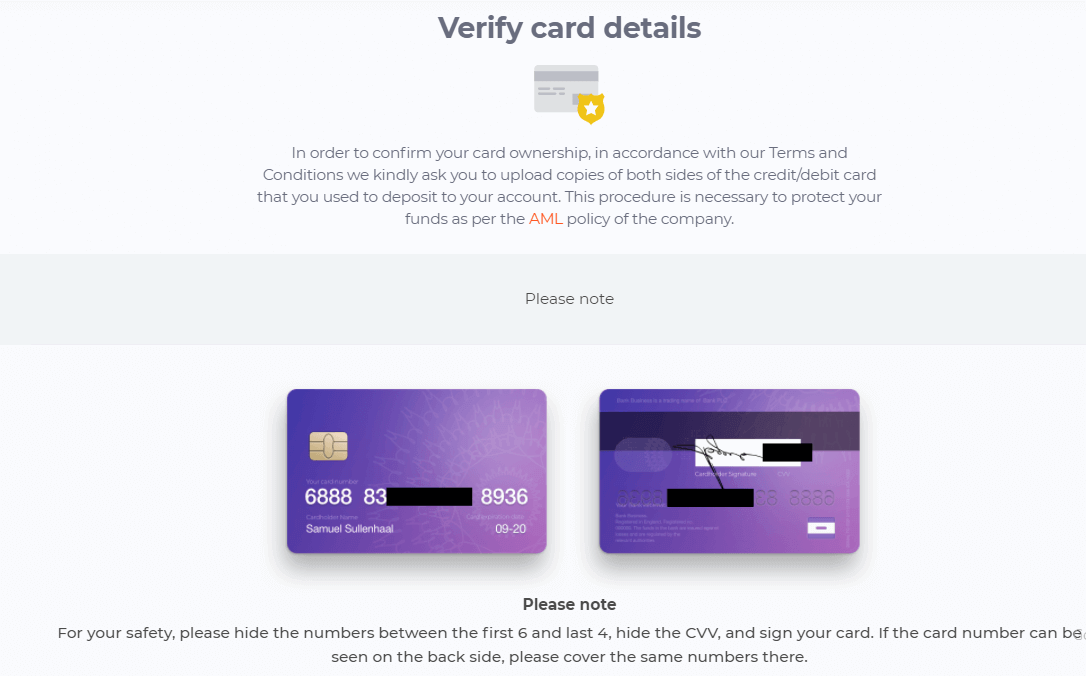
If you use an e-wallet to deposit funds, you need to send IQ Option a scan of your ID only.
All the documents will be verified within 3 business days after you make a withdrawal request.
Frequently Asked Questions (FAQ)
Can I trade without being verified?
It is obligatory to pass all the verification steps to be able to trade on IQ Option platform. In complying with the highest standards of safety and security, IQ Option strives to make sure that it’s the owner of the account who performs trading transactions and makes payments on IQ Option trading platform.
I cannot confirm my phone number
1. Open the platform using Google Chrome in incognito mode2. Make sure your phone number is specified accurately
3. Restart your mobile device and make sure your device receives other messages
4. Check whether you have received an SMS or a call with a verification code
If it does not help, please contact IQ Option Support Team via LiveChat and provide IQ Option specialists with the screenshots of an error (if any)
I cannot confirm my email address
1. Open the platform using Google Chrome in incognito mode2. Clear your browsing data — cache and cookies. To do this, please press CTRL + SHIFT + DELETE, choose the period ALL and then click CLEAN. Afterwards, please restart the page and see if there have been any changes. The complete procedure is described here. You may also try to use another browser or another device.
3. Request a verification e-mail once again.
4. Check your spam folder in your e-mail box.
If it does not help, please contact IQ Option Support Team via LiveChat and provide IQ Option specialists with the screenshots of an error (if any)
Why were my documents declined?
Please check if:- your docs are in color
- your docs were issued not earlier than six months ago
- you uploaded full-page copies of your documents
- you covered all the card numbers properly (the photo must show the first six and the last four digits of your card number; the CVV code on the reverse must be covered)
- you uploaded appropriate documents as your ID, such as your passport or driving license
FAQs
To register, open the IQ Option sign-up page, enter a valid email or phone number, create a strong password, and confirm your contact via the verification code sent to you. After basic sign-up you can choose a demo or real account; to access live features you must complete the verification steps and accept terms. Keep your personal details consistent with your ID to avoid delays during the KYC review.
Typical documents include a government-issued photo ID (passport, national ID, or driver’s license) and a proof of address such as a recent utility bill, bank statement, or official government letter showing your name and address. Files should be legible, current, and match the profile information.
Verification often completes within 24 to 72 hours but times vary with document quality, queue volume, and regional checks. Complex cases or requests for additional documentation can add several days. If verification is urgent, submit clear, uncropped documents and respond promptly to any requests for extra information.
Common reasons include blurred images, expired IDs, mismatched names or addresses, incorrect file formats, or cropped documents missing corners. To fix a rejection, read the platform’s feedback, re-upload full-color scans that show all corners and edge details, ensure your profile data exactly matches the ID, and include a recent proof of address. If rejections persist, contact support with the rejection reference and ask for specific guidance to avoid repeating errors.
You can use the demo account immediately, but real deposits and withdrawals are subject to verification and local payment-provider rules. Some funding methods may accept deposits before final KYC, yet withdrawals will typically remain locked until verification is approved. For safety and smoother access, complete verification before making significant deposits and secure your account with two-factor authentication.